Episode Details
Back to Episodes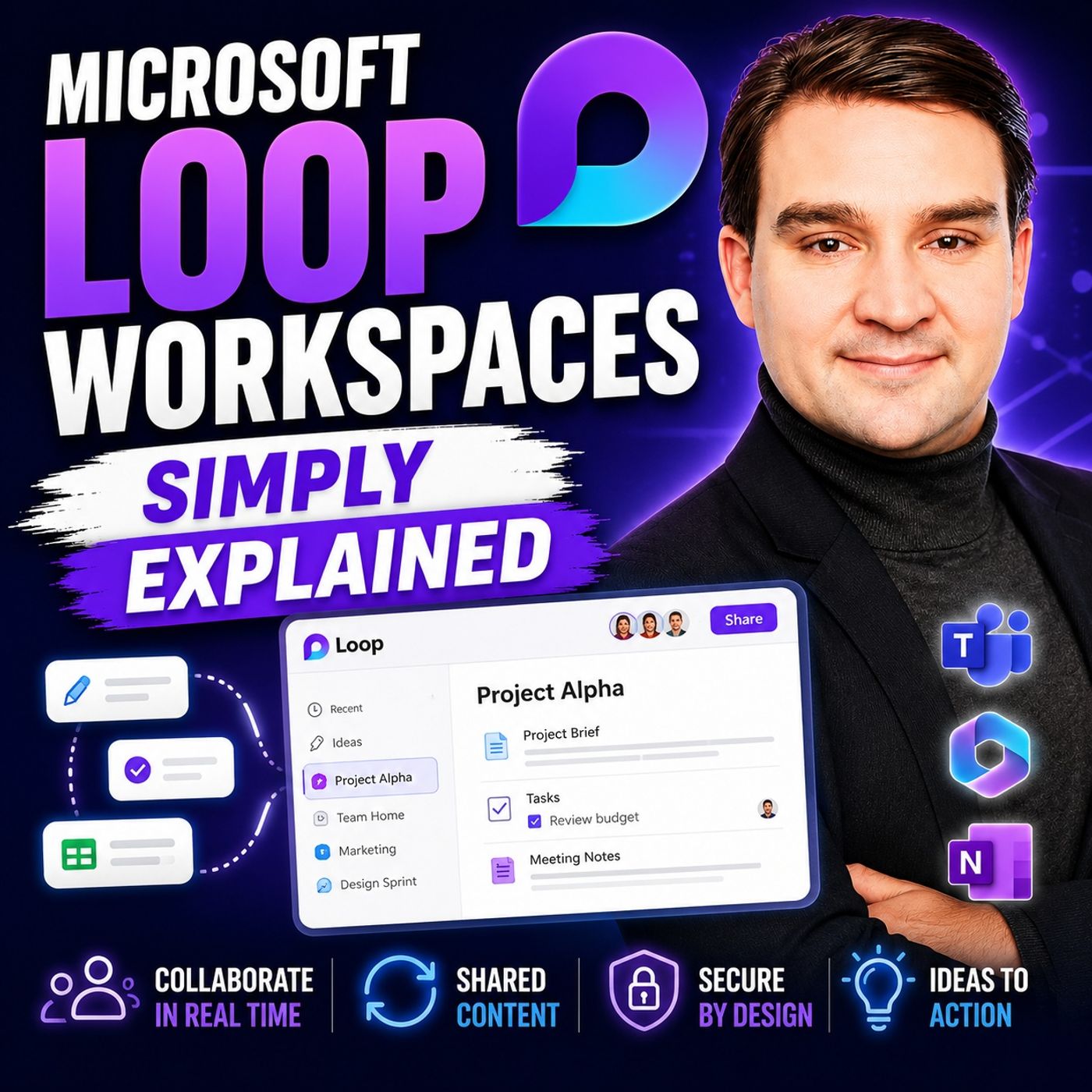
Microsoft Loop Workspaces - Simply Explained
Season 3
Published 2 weeks, 4 days ago
Description
Welcome to another episode of Knowledge Nuggets with Mirko Peters. Today we're taking a closer look at Microsoft Loop Workspaces, one of the newest collaboration experiences in Microsoft 365 that's changing how teams organize projects and work together. If you've ever found yourself jumping between Microsoft Teams, Outlook, OneNote, SharePoint, Planner, and Microsoft To Do just to keep a single project moving, you're not alone. Modern work is more connected than ever, yet the information we need is often scattered across multiple applications. Notes live in OneNote, conversations happen in Teams, documents are stored in SharePoint, and tasks are managed somewhere else entirely. Every application does its job well, but switching between them interrupts focus and makes collaboration harder than it needs to be. Microsoft Loop Workspaces were created to solve exactly this problem. Instead of treating documents, conversations, and tasks as separate pieces, Loop brings them together into one flexible collaborative workspace where teams can plan, brainstorm, assign work, and make decisions in real time. In this episode we'll explore how Loop Workspaces are structured, how they integrate with the rest of Microsoft 365, and when they're the right tool for your next project.
WHAT IS A MICROSOFT LOOP WORKSPACE?
The easiest way to understand a Loop Workspace is to imagine a dedicated project room inside your office. Every project has its own whiteboards, notes, action lists, meeting minutes, reference documents, and ideas pinned to the walls. Anyone working on that project knows exactly where to go to see the latest information. A Microsoft Loop Workspace brings that same concept into the digital world. It acts as a shared space where everything related to a project lives together. Instead of searching through Teams conversations, Outlook emails, Planner boards, and SharePoint folders, your team opens one workspace and immediately sees the latest notes, tasks, documents, and decisions. Unlike Microsoft Teams, which primarily focuses on conversations, or SharePoint, which concentrates on document management, Loop Workspaces provide a flexible canvas for collaboration. Teams continue chatting, brainstorming, updating tasks, embedding files, and documenting decisions inside the same workspace without constantly changing applications. Every workspace belongs to a specific team or initiative and includes its own members, cover image, pages, and collaborative content, making it easy to separate different projects while keeping everyone aligned.
UNDERSTANDING THE BUILDING BLOCKS OF LOOP
Microsoft Loop is built around three core concepts that work together to organize information naturally. At the highest level sits the Workspace. This represents an entire project, department, or business initiative and acts as the container for everything related to that work. Inside each workspace are Pages. These are where the actual collaboration happens. A page might contain meeting notes, project timelines, brainstorming sessions, documentation, checklists, or planning information. As projects grow, additional subpages can be created to organize more detailed topics without making the main workspace feel cluttered. Perhaps the most innovative feature of Loop is its Components. Components are portable pieces of content that remain synchronized wherever they appear. A task list created inside a Loop page can be copied into a Microsoft Teams chat or an Outlook email while remaining connected to its original source. When someone updates the task list in Teams, those changes automatically appear inside the Loop Workspace. Likewise, edits made in Loop immediately appear wherever that component has been shared. This synchronization removes one of the biggest frustrations in modern collaboration: maintaining multiple versions of the same information across different applications.
CREATING A LOOP WORKSP
WHAT IS A MICROSOFT LOOP WORKSPACE?
The easiest way to understand a Loop Workspace is to imagine a dedicated project room inside your office. Every project has its own whiteboards, notes, action lists, meeting minutes, reference documents, and ideas pinned to the walls. Anyone working on that project knows exactly where to go to see the latest information. A Microsoft Loop Workspace brings that same concept into the digital world. It acts as a shared space where everything related to a project lives together. Instead of searching through Teams conversations, Outlook emails, Planner boards, and SharePoint folders, your team opens one workspace and immediately sees the latest notes, tasks, documents, and decisions. Unlike Microsoft Teams, which primarily focuses on conversations, or SharePoint, which concentrates on document management, Loop Workspaces provide a flexible canvas for collaboration. Teams continue chatting, brainstorming, updating tasks, embedding files, and documenting decisions inside the same workspace without constantly changing applications. Every workspace belongs to a specific team or initiative and includes its own members, cover image, pages, and collaborative content, making it easy to separate different projects while keeping everyone aligned.
UNDERSTANDING THE BUILDING BLOCKS OF LOOP
Microsoft Loop is built around three core concepts that work together to organize information naturally. At the highest level sits the Workspace. This represents an entire project, department, or business initiative and acts as the container for everything related to that work. Inside each workspace are Pages. These are where the actual collaboration happens. A page might contain meeting notes, project timelines, brainstorming sessions, documentation, checklists, or planning information. As projects grow, additional subpages can be created to organize more detailed topics without making the main workspace feel cluttered. Perhaps the most innovative feature of Loop is its Components. Components are portable pieces of content that remain synchronized wherever they appear. A task list created inside a Loop page can be copied into a Microsoft Teams chat or an Outlook email while remaining connected to its original source. When someone updates the task list in Teams, those changes automatically appear inside the Loop Workspace. Likewise, edits made in Loop immediately appear wherever that component has been shared. This synchronization removes one of the biggest frustrations in modern collaboration: maintaining multiple versions of the same information across different applications.
CREATING A LOOP WORKSP