Episode Details
Back to Episodes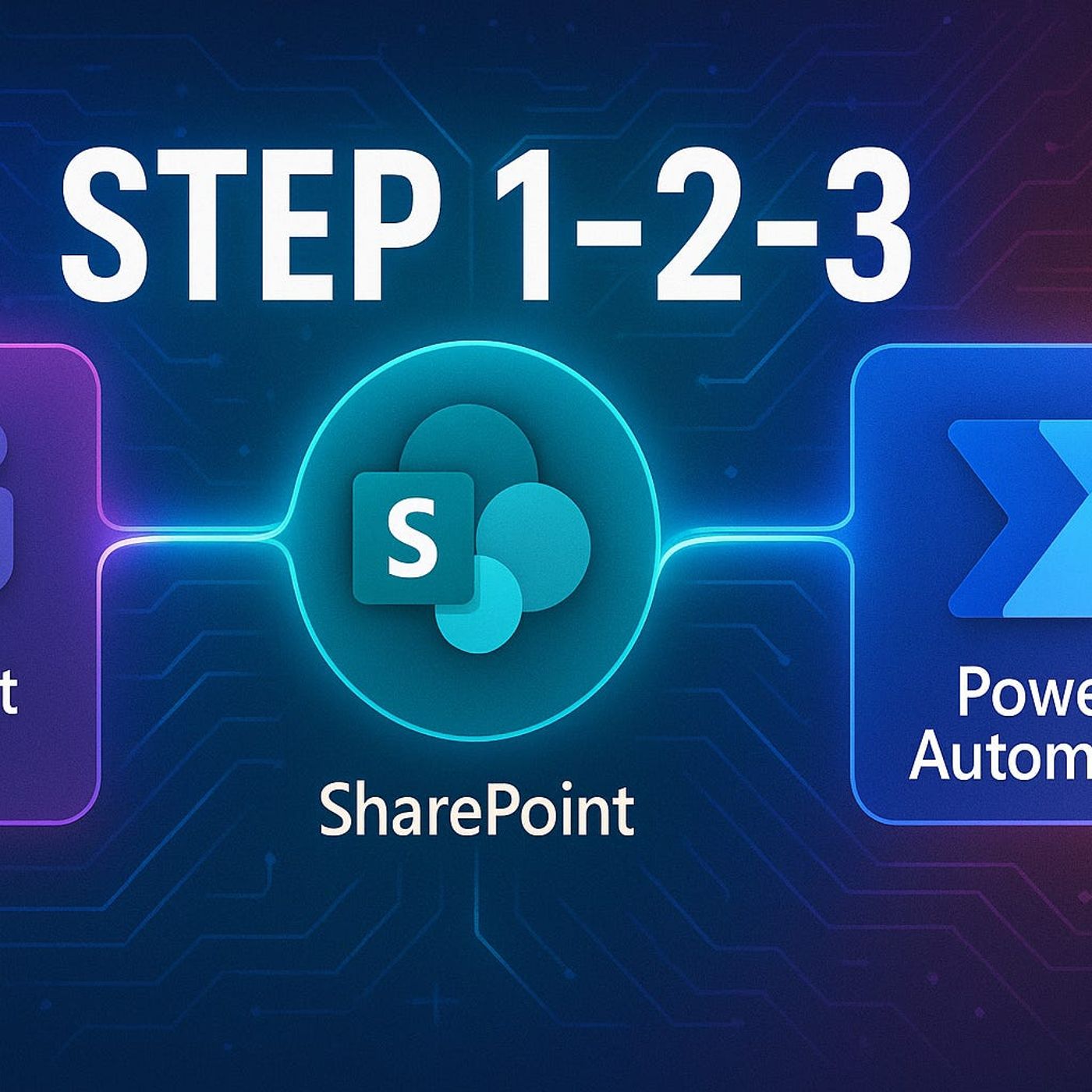
Step‑by‑Step Guide to Organizing Projects in Microsoft Teams: How to Build a Durable Project System with SharePoint and Power Automate
Season 1
Published 11 months, 2 weeks ago
Description
Step‑by-Step Guide to Organizing Projects in Teams
What’s the difference between a project that feels effortless and one that leaves everyone chasing files and status updates? It’s not the app you picked—it’s the system behind it, and most Teams workspaces quietly fall apart within 90 days because that system is missing. In this episode, I walk you through how to design a durable project setup in Microsoft Teams, with SharePoint as the backbone and Power Automate as the glue, so visibility, updates and document versions stay in sync without relying on everyone’s daily discipline.
We start with why most “new project spaces” slowly collapse into chaos. At the beginning, everyone is motivated: channels are clean, files land in the right folders, and Planner or a task app looks up to date. But small shortcuts—dropping files into chat, creating private folders, keeping side trackers in Excel—compound until nobody knows which version or board reflects reality. You’ll hear how this erosion happens in real projects and why it’s almost never about the wrong tool, but about missing system rules that survive stress, new team members and deadlines.
Then we introduce the three core principles of a durable project system. First: one source of truth, with SharePoint as the structured backbone for files, lists and records, and Teams surfacing that data instead of duplicating it. Second: minimal duplication, using automation to carry updates from the core data into Teams, notifications and dashboards so project managers aren’t copying the same status into three tools. Third: visibility without micromanagement—designing views and dashboards that show real project health and risk, not just lists of overdue tasks that push leaders into day‑to‑day policing.
Finally, we turn principles into a concrete blueprint you can reuse. You’ll learn how to standardize a project template in Teams that automatically provisions the right SharePoint structure, connects boards and lists, and wires in Power Automate flows so status, documents and communication stay aligned. By the end, you’ll be able to move from “every project is a fresh experiment” to a repeatable system where new projects spin up fast, stay organized, and remain reliable long after the initial enthusiasm fades.
WHAT YOU’LL LEARN
What’s the difference between a project that feels effortless and one that leaves everyone chasing files and status updates? It’s not the app you picked—it’s the system behind it, and most Teams workspaces quietly fall apart within 90 days because that system is missing. In this episode, I walk you through how to design a durable project setup in Microsoft Teams, with SharePoint as the backbone and Power Automate as the glue, so visibility, updates and document versions stay in sync without relying on everyone’s daily discipline.
We start with why most “new project spaces” slowly collapse into chaos. At the beginning, everyone is motivated: channels are clean, files land in the right folders, and Planner or a task app looks up to date. But small shortcuts—dropping files into chat, creating private folders, keeping side trackers in Excel—compound until nobody knows which version or board reflects reality. You’ll hear how this erosion happens in real projects and why it’s almost never about the wrong tool, but about missing system rules that survive stress, new team members and deadlines.
Then we introduce the three core principles of a durable project system. First: one source of truth, with SharePoint as the structured backbone for files, lists and records, and Teams surfacing that data instead of duplicating it. Second: minimal duplication, using automation to carry updates from the core data into Teams, notifications and dashboards so project managers aren’t copying the same status into three tools. Third: visibility without micromanagement—designing views and dashboards that show real project health and risk, not just lists of overdue tasks that push leaders into day‑to‑day policing.
Finally, we turn principles into a concrete blueprint you can reuse. You’ll learn how to standardize a project template in Teams that automatically provisions the right SharePoint structure, connects boards and lists, and wires in Power Automate flows so status, documents and communication stay aligned. By the end, you’ll be able to move from “every project is a fresh experiment” to a repeatable system where new projects spin up fast, stay organized, and remain reliable long after the initial enthusiasm fades.
WHAT YOU’LL LEARN
- Why most Teams‑based project setups collapse within 90 days even if everyone likes the tool.
- The three principles of a durable project system: one source of truth, minimal duplication, and visibility without micromanagement.
- How to use SharePoint as the project backbone and Teams as the collaboration front‑end instead of parallel silos.
- How Power Automate can keep updates, files and status in sync without constant manual effort.