Episode Details
Back to Episodes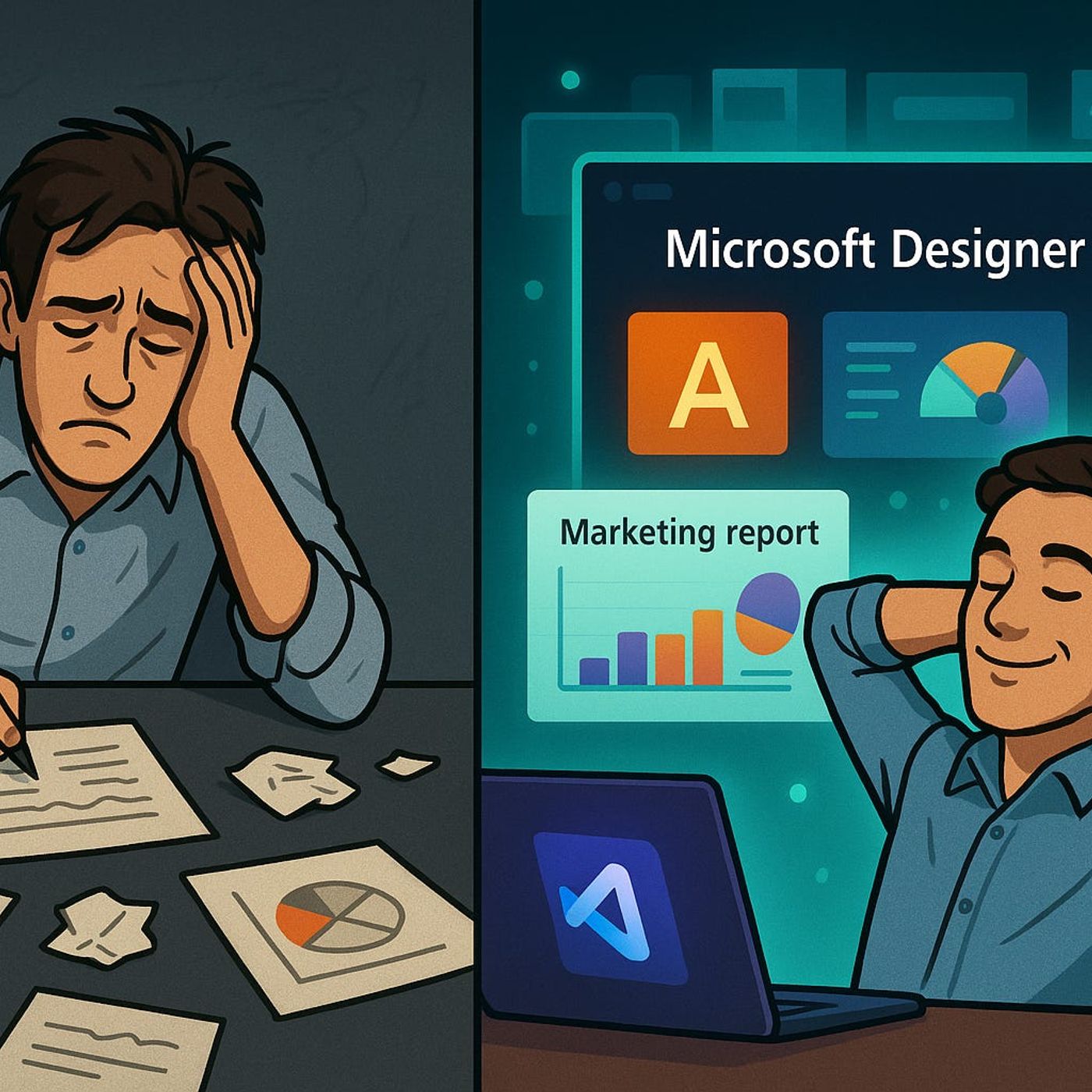
Microsoft Designer for Business Content Creation: How to Turn Brand Kits and AI into Faster, On‑Brand Marketing Assets
Season 1
Published 11 months, 3 weeks ago
Description
Microsoft Designer for Business Content Creation
Spending hours nudging text boxes, checking brand colors and fixing “final_v3” slides is not real creative work—it’s layout babysitting. In this episode, I show how Microsoft Designer takes your brand kit, content and assets and turns them into on‑brand visuals in seconds, so your team can focus on ideas instead of pixel‑pushing. We walk through what changes when AI handles the repetitive formatting, how Designer learns your style over time, and what this means for marketing teams that live inside PowerPoint, social posts and campaign assets all week.
We start with the reality of manual tweaks and feedback loops. Tiny adjustments—logo placement, font sizes, hex codes, image swaps—quietly eat entire afternoons, especially when multiple stakeholders keep asking for “just one more small change.” You’ll hear why this kind of work creates drag on every campaign, leads to version chaos across “Final2” and “FINAL_USE_THIS” files, and leaves less energy for the part of the job that actually moves the business: concepts, narratives and messaging.
Then we look at how Designer changes that equation once it knows your brand. With your colors, fonts and logos loaded as a brand kit, Designer generates layout options that are already on‑brand the moment you paste in headline, copy and images. Instead of starting from a blank slide or generic template, you react to several good first drafts—aligned, styled and consistent—so your time goes into refining the message, not fixing the grid. You’ll hear examples of teams cutting routine collateral creation from hours to under an hour, and why their creative quality didn’t drop when AI took over the formatting work.
Finally, we talk about collaboration and where AI still gets it wrong. Because Designer lives in the Microsoft 365 ecosystem, it works directly with assets in SharePoint, OneDrive and Teams, reducing version chaos and making real‑time co‑editing the default instead of the exception. At the same time, we address what happens when AI suggests the wrong tone or visuals, and how your team’s approvals and edits effectively “teach” Designer over time so its proposals feel more like your brand—and less like a generic demo.
WHAT YOU’LL LEARN
The core insight of this episode is that design teams don’t need AI to replace their taste—they
Spending hours nudging text boxes, checking brand colors and fixing “final_v3” slides is not real creative work—it’s layout babysitting. In this episode, I show how Microsoft Designer takes your brand kit, content and assets and turns them into on‑brand visuals in seconds, so your team can focus on ideas instead of pixel‑pushing. We walk through what changes when AI handles the repetitive formatting, how Designer learns your style over time, and what this means for marketing teams that live inside PowerPoint, social posts and campaign assets all week.
We start with the reality of manual tweaks and feedback loops. Tiny adjustments—logo placement, font sizes, hex codes, image swaps—quietly eat entire afternoons, especially when multiple stakeholders keep asking for “just one more small change.” You’ll hear why this kind of work creates drag on every campaign, leads to version chaos across “Final2” and “FINAL_USE_THIS” files, and leaves less energy for the part of the job that actually moves the business: concepts, narratives and messaging.
Then we look at how Designer changes that equation once it knows your brand. With your colors, fonts and logos loaded as a brand kit, Designer generates layout options that are already on‑brand the moment you paste in headline, copy and images. Instead of starting from a blank slide or generic template, you react to several good first drafts—aligned, styled and consistent—so your time goes into refining the message, not fixing the grid. You’ll hear examples of teams cutting routine collateral creation from hours to under an hour, and why their creative quality didn’t drop when AI took over the formatting work.
Finally, we talk about collaboration and where AI still gets it wrong. Because Designer lives in the Microsoft 365 ecosystem, it works directly with assets in SharePoint, OneDrive and Teams, reducing version chaos and making real‑time co‑editing the default instead of the exception. At the same time, we address what happens when AI suggests the wrong tone or visuals, and how your team’s approvals and edits effectively “teach” Designer over time so its proposals feel more like your brand—and less like a generic demo.
WHAT YOU’LL LEARN
- Why traditional slide and asset tweaking quietly kills creative time.
- How Microsoft Designer uses your brand kit to generate on‑brand layouts automatically.
- How working inside M365 (SharePoint, OneDrive, Teams) reduces version chaos in design collaboration.
- Where AI design suggestions still miss the mark—and how your team can steer Designer over time.
The core insight of this episode is that design teams don’t need AI to replace their taste—they