Episode Details
Back to Episodes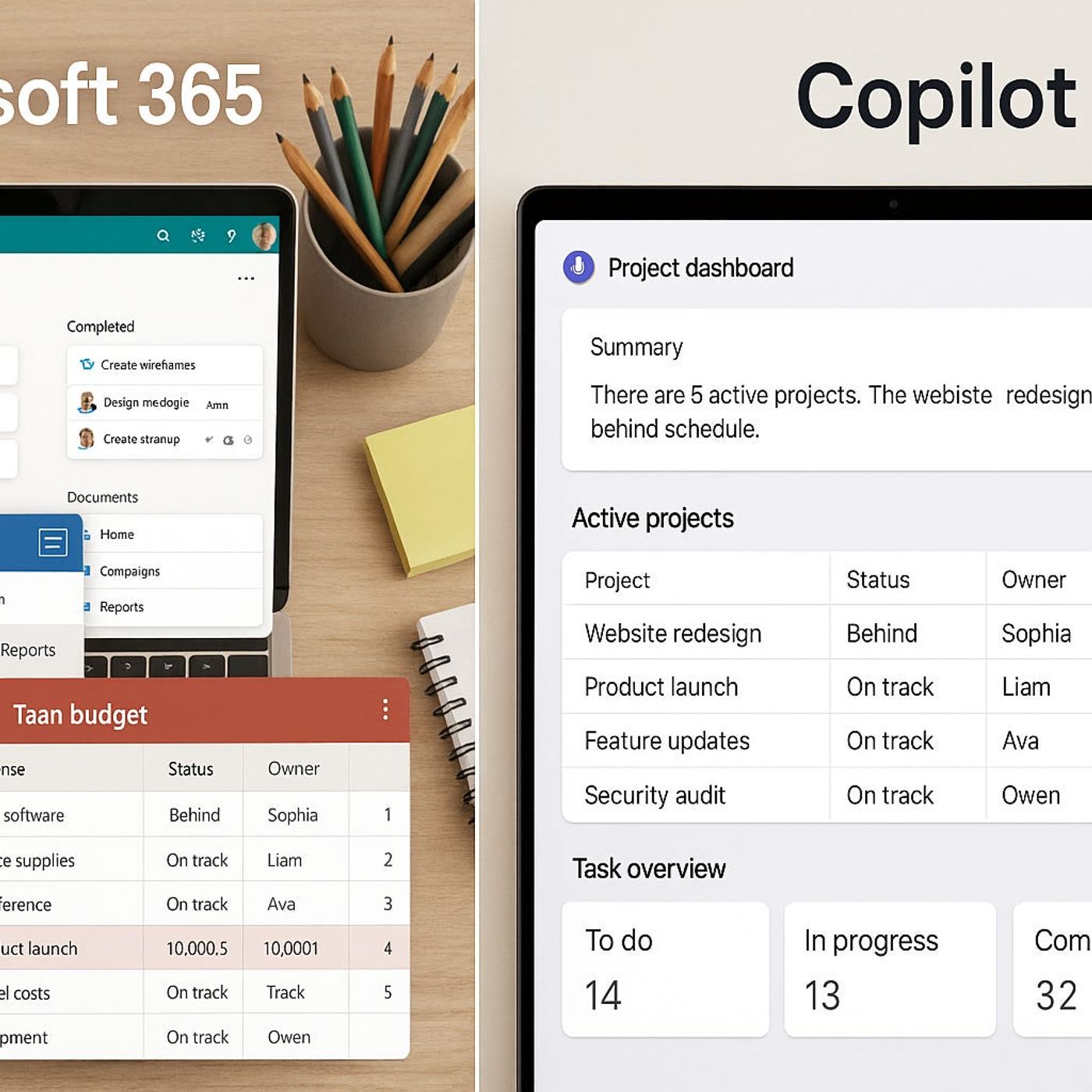
Custom Copilot Plugins for Microsoft 365: How to Turn Planner, SharePoint and Teams Data into One Reliable Answer
Season 1
Published 9 months, 3 weeks ago
Description
If your project data lives in ten different places across Microsoft 365, how do you get a single, reliable status update without spending half your day clicking around? In this episode, I show you how to build a custom Copilot plugin that turns questions like “Where are we on Project Apollo?” into one accurate answer—by wiring Copilot directly into Planner, SharePoint, and Teams instead of relying on screenshots and spreadsheets. You’ll see the real API calls, the manifest that teaches Copilot what to do, and the secure access model that keeps everything inside your governance boundaries.
We start where the pain is worst: Friday status reports that require hopping between Planner buckets, SharePoint lists, and long Teams threads just to reconstruct what actually happened this week. Planner knows the tasks, SharePoint tracks approvals, Teams holds the conversations—but none of them talk to each other without you in the middle. I walk through concrete examples of how scattered APIs, inconsistent field names, and different auth models make manual reporting slow, error‑prone, and exhausting.
From there, we map the APIs that matter—Microsoft Graph for Planner and Teams, SharePoint REST for list data—and turn that map into a plugin manifest Copilot can actually understand. You’ll learn how to describe each operation in plain language, define parameters like projectId or date ranges, and give Copilot enough structure to turn a vague user question into precise, filtered API calls. This is where Copilot stops guessing and starts reliably pulling the right data with the right filters and scopes.
Finally, we connect everything into a secure, production‑ready flow: the plugin manifest, the backend service that calls the APIs, and the permission model that makes sure Copilot only sees what each user is allowed to see. By the end, “ask Copilot for a project status” is no longer a dream or a demo—it’s a capability you can design, build, and roll out across your own Microsoft 365 tenant.
WHAT YOU LEARN
The core insight of this episode is that custom Copilot plugins are not magic—they’re carefully designed bridges between the way humans ask questions and the way Microsoft 365’s APIs deliver data. Once you treat your plugin as a map (manifest), a set of routes (API calls), and a lock system (permissions)
We start where the pain is worst: Friday status reports that require hopping between Planner buckets, SharePoint lists, and long Teams threads just to reconstruct what actually happened this week. Planner knows the tasks, SharePoint tracks approvals, Teams holds the conversations—but none of them talk to each other without you in the middle. I walk through concrete examples of how scattered APIs, inconsistent field names, and different auth models make manual reporting slow, error‑prone, and exhausting.
From there, we map the APIs that matter—Microsoft Graph for Planner and Teams, SharePoint REST for list data—and turn that map into a plugin manifest Copilot can actually understand. You’ll learn how to describe each operation in plain language, define parameters like projectId or date ranges, and give Copilot enough structure to turn a vague user question into precise, filtered API calls. This is where Copilot stops guessing and starts reliably pulling the right data with the right filters and scopes.
Finally, we connect everything into a secure, production‑ready flow: the plugin manifest, the backend service that calls the APIs, and the permission model that makes sure Copilot only sees what each user is allowed to see. By the end, “ask Copilot for a project status” is no longer a dream or a demo—it’s a capability you can design, build, and roll out across your own Microsoft 365 tenant.
WHAT YOU LEARN
- Where project data actually hides in Microsoft 365 (Planner, SharePoint, Teams) and why that breaks traditional reporting.
- How to identify and design the key Microsoft Graph and SharePoint REST API calls your plugin needs.
- How to write a Copilot plugin manifest that translates natural language questions into specific, filtered API operations.
- Why scopes, permissions, and rate limits matter when your plugin hits multiple services at once.
- How to design a secure backend and access model so Copilot only uses data users are allowed to see.
The core insight of this episode is that custom Copilot plugins are not magic—they’re carefully designed bridges between the way humans ask questions and the way Microsoft 365’s APIs deliver data. Once you treat your plugin as a map (manifest), a set of routes (API calls), and a lock system (permissions)