Episode Details
Back to Episodes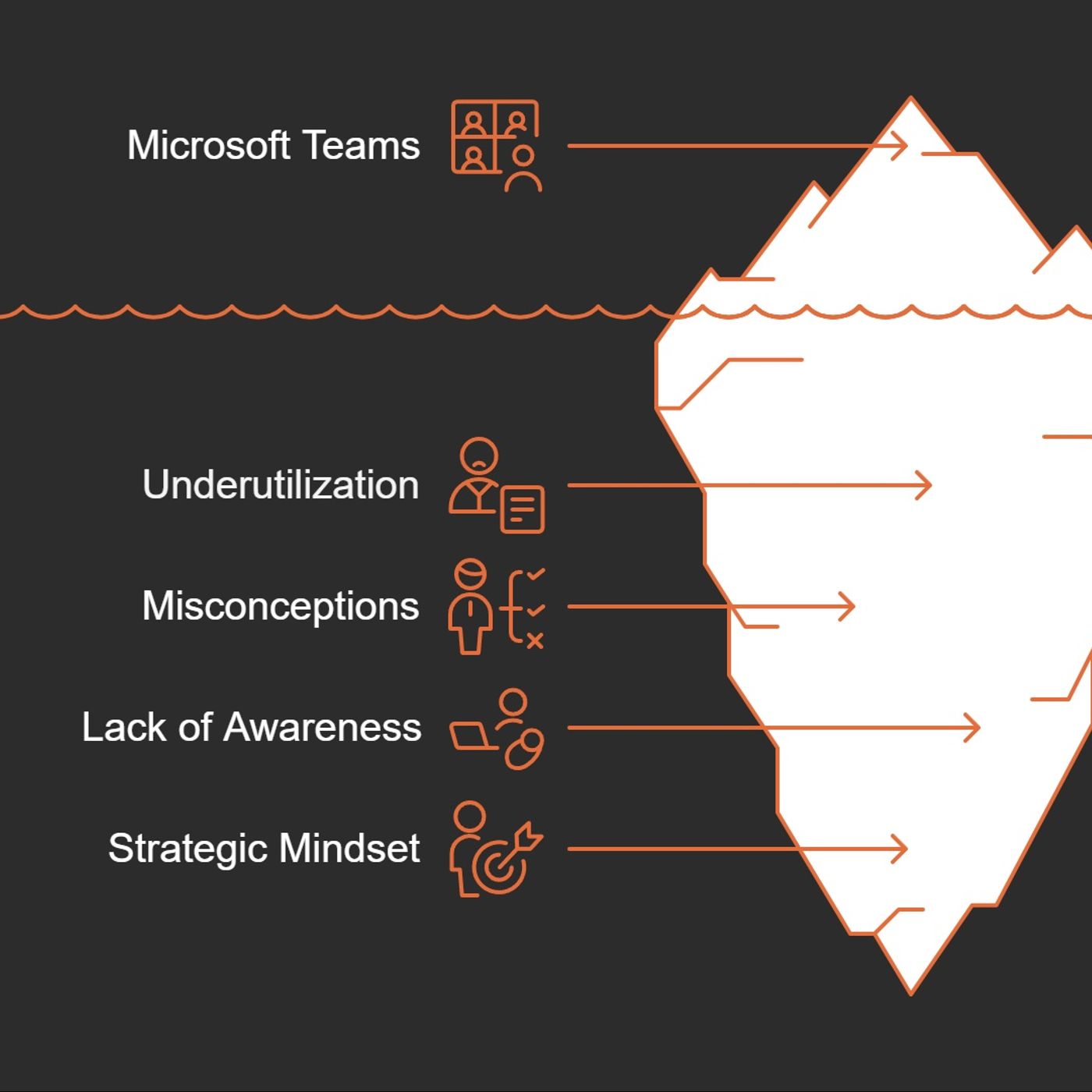
Microsoft Teams project management: organize channels, files, and Planner to cut chaos and ship projects on time
Season 1
Published 1 year, 3 months ago
Description
Microsoft Teams project management: in this episode of M365.fm, Mirko Peters shows how to turn the Teams you already pay for into a practical project hub—without buying yet another project management tool. He starts from the everyday chaos most teams know too well: files scattered across chats, endless status meetings, and people losing almost a full day each week just searching for information instead of actually moving work forward.
Mirko first tackles the hidden cost of underutilization. Many organizations treat Teams as “just chat and meetings,” while spending extra money on separate tools for tasks, reporting, and collaboration that duplicate what Teams plus Planner, Lists, and Power Automate can already do. He explains how simple changes—clear channel structure, consistent naming, and storing documents in the Files tab instead of chat—instantly cut search time and reduce the feeling that everything lives in someone else’s inbox.
From there, he goes deep on file organization as the backbone of project clarity. You hear concrete pitfalls: uploading documents into conversations, creating multiple slightly different versions, and inconsistent naming that makes “final_report_v3_latest” a running joke. Mirko walks through practical fixes like standard folder hierarchies, shared naming conventions, and always using the channel’s Files library—turning Teams into a predictable filing cabinet instead of an unsearchable junk drawer
The episode then moves to task tracking with Microsoft Planner inside Teams. Mirko describes how fragmented workflows—spreadsheets here, sticky notes there, email reminders everywhere—sap focus and lead to missed deadlines. Planner’s Kanban boards, checklists, and assignments inside each Teams channel centralize who is doing what by when, while visual boards make bottlenecks obvious at a glance. Integrations with Power Automate and Power BI add automated status updates and lightweight reporting without forcing teams to change tools.
Throughout, the message is simple: structure beats more software. By deliberately using Teams channels, Planner tabs, clear file structures, and a few basic automations, most teams can get 80% of the value they seek from complex project tools—using platforms they already own. Mirko’s approach favors small, repeatable patterns over big‑bang rollouts, so improvements stick and project chaos gradually turns into a calm, visible workflow.
WHAT YOU WILL LEARN
You do not need more project tools; you need more structure in the tools you already have. Once you organize Teams, files, and Planner boards around how your projects really work, you stop drowning in status meetings and start seeing progress where it matters—on c
Mirko first tackles the hidden cost of underutilization. Many organizations treat Teams as “just chat and meetings,” while spending extra money on separate tools for tasks, reporting, and collaboration that duplicate what Teams plus Planner, Lists, and Power Automate can already do. He explains how simple changes—clear channel structure, consistent naming, and storing documents in the Files tab instead of chat—instantly cut search time and reduce the feeling that everything lives in someone else’s inbox.
From there, he goes deep on file organization as the backbone of project clarity. You hear concrete pitfalls: uploading documents into conversations, creating multiple slightly different versions, and inconsistent naming that makes “final_report_v3_latest” a running joke. Mirko walks through practical fixes like standard folder hierarchies, shared naming conventions, and always using the channel’s Files library—turning Teams into a predictable filing cabinet instead of an unsearchable junk drawer
The episode then moves to task tracking with Microsoft Planner inside Teams. Mirko describes how fragmented workflows—spreadsheets here, sticky notes there, email reminders everywhere—sap focus and lead to missed deadlines. Planner’s Kanban boards, checklists, and assignments inside each Teams channel centralize who is doing what by when, while visual boards make bottlenecks obvious at a glance. Integrations with Power Automate and Power BI add automated status updates and lightweight reporting without forcing teams to change tools.
Throughout, the message is simple: structure beats more software. By deliberately using Teams channels, Planner tabs, clear file structures, and a few basic automations, most teams can get 80% of the value they seek from complex project tools—using platforms they already own. Mirko’s approach favors small, repeatable patterns over big‑bang rollouts, so improvements stick and project chaos gradually turns into a calm, visible workflow.
WHAT YOU WILL LEARN
- Why Teams is underused as a project management platform you already own.
- How disorganized files and channels quietly kill productivity and focus.
- How to structure Teams channels, Files, and naming conventions for fast information retrieval.
- How Planner inside Teams centralizes tasks with Kanban boards, checklists, and ownership.
- How simple automations and reporting (Power Automate, Power BI) turn Teams into a true project hub.
You do not need more project tools; you need more structure in the tools you already have. Once you organize Teams, files, and Planner boards around how your projects really work, you stop drowning in status meetings and start seeing progress where it matters—on c