Episode Details
Back to Episodes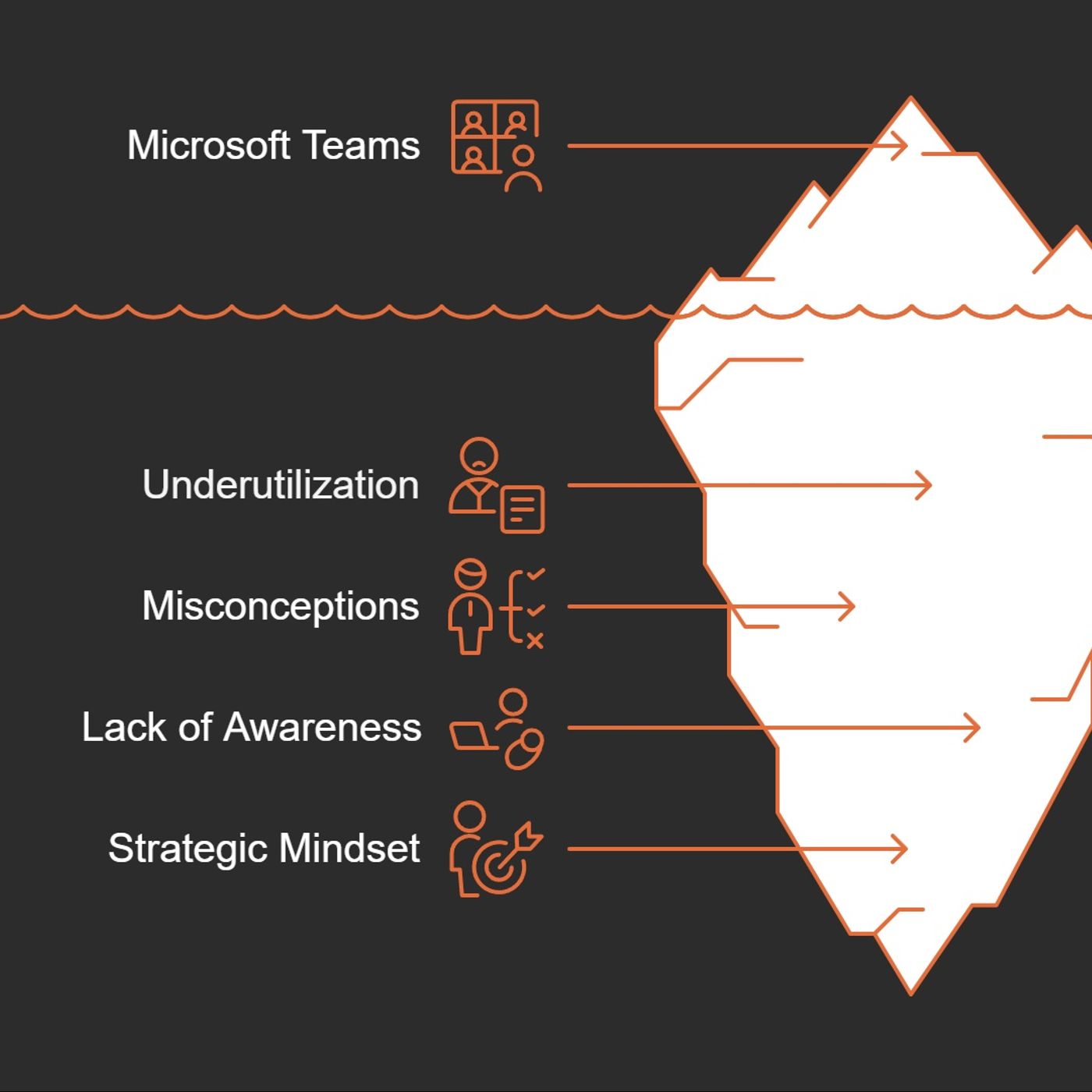
Transforming Project Management with Microsoft Teams: A Practical Guide
Published 10 months, 1 week ago
Description
Have you ever felt like you’re swimming in a sea of project chaos, frantically searching for lost documents and double-checking task statuses? I certainly have! That’s when I discovered that Microsoft Teams, a tool we all had but barely utilized, could be a game-changer in organizing my projects. In this post, I'll share how embracing Teams can streamline your workflows, from tracking tasks to enhancing communication, and ultimately boost your team's productivity.M365 Show is a reader-supported publication. To receive new posts and support my work, consider becoming a free or paid subscriber.The Hidden Potential of Microsoft Teams as a Project Management ToolMicrosoft Teams is often seen as just a communication tool. But let me tell you, it has hidden depths that can change the way we manage projects. Many organizations are underutilizing this powerful platform. They invest thousands in specialized project management software, yet the solution might already be sitting right in front of them with Teams. So, how can we unlock that potential?Understanding UnderutilizationIt’s quite common for teams to struggle with organization, even with the right tools in hand. Did you know that a typical team member spends nearly 20% of their workweek just searching for information? That's like losing a whole day! Most of this chaos arises from poor organization within Teams. I’ve seen project managers like Maya who think they’re organized while their teams are drowning in messy communication and unclear priorities.* Communication chaos: When messages become cluttered, it leads to confusion.* Missed deadlines: Disorganization can cause important deadlines to slip through the cracks.* Wasted time: Searching for files and information creates inefficiencies.By addressing these issues, we can enhance productivity significantly. How? By restructuring how we manage files, tasks, and communication within Teams. Let’s look deeper.Common Myths About Project Management SoftwareThere are myths surrounding project management tools that can hinder our productivity. One common belief is that complex software is always better. But,‘Often, the best tools are the ones we aren't using to their full potential.’A simple tool can be just as effective, if not more so, when used correctly. Sometimes, the best solution is the one we already have!Many teams think they need multiple software solutions for task management, collaboration, and reporting. However, consolidating these functions within Teams can simplify workflows. For example, using Microsoft Planner for task tracking keeps everything in one place, reducing confusion and increasing efficiency.Real-World Examples of Teams Enhancing Project EfficiencyLet’s consider some real-world applications of Microsoft Teams that show its potential. One product development team I worked with had a chaotic file management system. They were uploading files into channel conversations, leading to lost documents and confusion. By reorganizing their file structure and employing proper naming conventions, they cut down their file-finding time dramatically. Imagine saving hours simply by making a few adjustments!Another example is automating status updates with Power Automate. Teams often spend up to eight hours a week just providing updates. By automating these processes, teams can focus more on their work rather than on meetings. How much more could you achieve if you didn’t have to spend hours in status meetings?Integrating Microsoft Forms and Power BI with Teams can also revolutionize project visibility. By having key performance indicators and feedback mechanisms embedded directly in Teams, stakeholders can access critical information easily. This helps eliminate communication silos and keeps everyone in the loop.The Path ForwardTo truly leverage the full potential of Microsoft Teams as a project management tool, we must adopt a strategic mindset. Here’s what I recommend:* Organize communication: Create specific channels for